Loopy Pro: Create music, your way.
What is Loopy Pro? — Loopy Pro is a powerful, flexible, and intuitive live looper, sampler, clip launcher and DAW for iPhone and iPad. At its core, it allows you to record and layer sounds in real-time to create complex musical arrangements. But it doesn’t stop there—Loopy Pro offers advanced tools to customize your workflow, build dynamic performance setups, and create a seamless connection between instruments, effects, and external gear.
Use it for live looping, sequencing, arranging, mixing, and much more. Whether you're a live performer, a producer, or just experimenting with sound, Loopy Pro helps you take control of your creative process.
Download on the App StoreLoopy Pro is your all-in-one musical toolkit. Try it for free today.
Moving Digistix2 to another iPad

Hi,
Beginner here for drum machine efforts. I have Digistix2 on two iPads in AUM. Hoping to learn I manually programmed in seven songs each with 24 patterns from drum programming books.
Now I would like to transfer them to the other iPad and I don’t know how to do it.
I see they are not in the normal files system. The help manual tells me how to transfer patterns or songs to a computer.
How can I transfer between iPads?
Thanks
Comments
Ah, the old iOS problem. Apple won't let you access your own files inside the app sandbox. The developer has to make the data available somehow.
But why don't you just export your drum patterns to MIDI and import them on the other iPad?
That thought occurred to me but I was hoping for some confirmation before I jumped down yet another rabbit hole. Thank you 👍
I have managed to export some individual midi files to a folder.
Cannot find an import icon to import these files back into digistix2 on my other iPad or this one either.
I have been looking at the help doc and videos.
Thanks for your help.
The Import is called RESTORE, once you have selected the Bank or Drum Kit you want to export, select Backup, that will direct you to the Digistix2 folder, tap on the file inside that folder and it will automatically name itself to your Bank or Kit name.
To you want to send that Bank or Kit to another iPad, open Files > iCloud Drive > Digistix2 > your backup file, copy this file, go into the same file location on your second iPad and paste the file here,
Launch Digistix2, go into files (3 lines at top right), tap Restore, this will direct you to your backup file, tap it and it automatically loads into the User section, tap Save to store it into the memory 👍
Mike
Rapid fire, your post has been helpful. I am not trying to save banks or kits. I am trying to save patterns or songs as midi files and them opening them on my other iPad. I did one song with 24 patterns already .
When I tried to duplicate the process with another song, it is greyed out in the files when I try to restore it . Any help will be appreciated.
If you look at my screenshot you will see the options to Save, Load and Export your saved patterns as either a MIDI or WAV file, if you tapped the Export Pattern to MIDI, a box will open asking for your choice of either Helium Clips or MIDI, selecting MIDI will direct you to the same folder as the Backups are saved to in iCloud Drive > Files > DigiStix2.
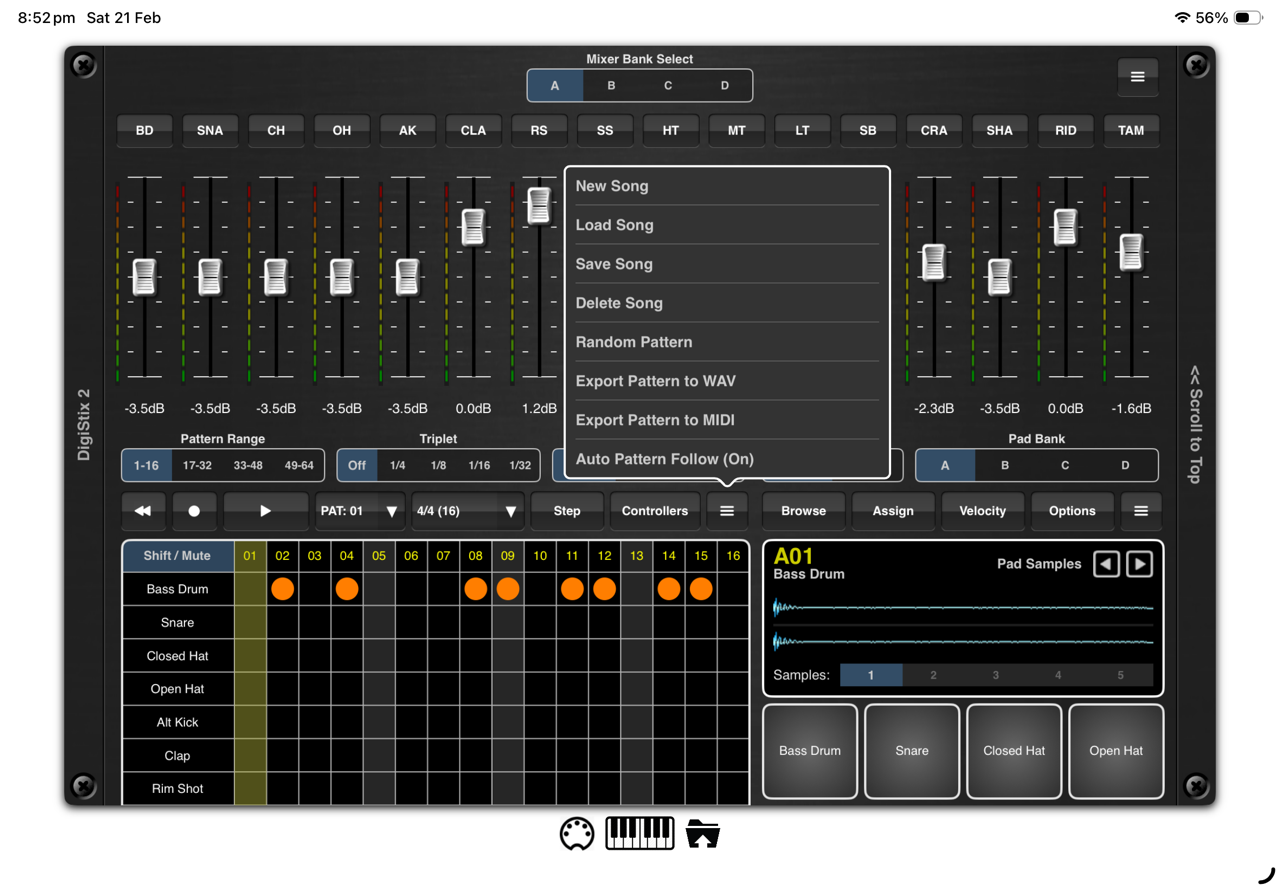
Btw, once you have save your Patterns, as long as both iPads are on WiFi, the Patterns will automatically transfer to the other DigiStix2 folder in the Files app.
I hope thus is helpful for you 👍
Mike
@Bellows - Hopefully you have the information that you need. FYI - there is a a Web Transfer option (the bottom of the screen with the folder with arrow pointing up) and that will allow you use a PC or Mac with a web browser on the same network to transfer songs and any user imported samples in and out of the app.
I forgot about the Web Transfer option, it’s been a while since I sent DigiStix2 files between my two iPads, thanks for the reminder 👍
Mike
Thank you all for your help. I finally got the files transferred. Now to learn how to use them.🧐
Glad you got it sorted
Mike🍻