Loopy Pro: Create music, your way.
What is Loopy Pro? — Loopy Pro is a powerful, flexible, and intuitive live looper, sampler, clip launcher and DAW for iPhone and iPad. At its core, it allows you to record and layer sounds in real-time to create complex musical arrangements. But it doesn’t stop there—Loopy Pro offers advanced tools to customize your workflow, build dynamic performance setups, and create a seamless connection between instruments, effects, and external gear.
Use it for live looping, sequencing, arranging, mixing, and much more. Whether you're a live performer, a producer, or just experimenting with sound, Loopy Pro helps you take control of your creative process.
Download on the App StoreLoopy Pro is your all-in-one musical toolkit. Try it for free today.
Simplest way to record separate Mix Buses to independent tracks inside AUM?

I’m looking for the simplest way to record separate AUM Mix Buses onto separate tracks for post-jam playback.
The Goal: I jam in SonoBus and want to record "Me" and "My Partner" on isolated tracks so I can adjust our relative volumes during playback.
Current Setup & Pain Point:
I’m currently using Neon on its own channel strip fed by a Mix Bus, but it’s limited to a single stereo file. I need a multitrack solution that lives inside AUM.
Requirements:
Simple Interface: I have Loopy Pro, but I find it very cluttered for this specific task. I want to avoid "DAW bloat."
MIDI Control: I need to be able to trigger Record/Stop via MIDI.
Routing: I want to expose Mixbus A and Mix B as seperate tracks inside of the recording application.
Internal Playback: I want to stay inside AUM to listen back and mix the levels immediately.
Is there a way to "strip down" Loopy Pro to act as a simple 2-track tape machine, or is there a leaner AUv3 (like 4Pockets MultiTrack) that you’d recommend for this specific routing?
Comments
It's absolutely possible to strip down Loopy Pro to act as a simple two track tape machine.
On the second track FX slot, select Multi-bus Audio Unit > Loopy Pro
Go to Loopy's mixer and change the first input to output to the color of the first loop
Add an Audio Input.
Change Clip Settings > Recording Settings > Miscellaneous > Simultaneous recording to ON
That all probably sounds far more difficult than it really is. It's actually pretty simple.
I think that's all you need to get an initial start. There are undoubted several other detailed settings needed to suit your workflow, but that's usually easier to determine once you've gotten a basic setup going.
Once you've got something set up in a way that works for you, you can clear the loops and save that as a Loopy Pro template to speed future setup, or you can just save the AUM session and import it into new AUM projects as well.
@Kendoori: it wouldn’t take long to put together a simple reusable Loopy Pro template setup as you describe. A few minutes if you are familiar with the canvas editor and Loopy’s settings…a bit longer if you aren’t. You could also use the session recording feature to capture the audio.
It would probably be simplest to set this up and operate in Loopy Pro standalone than use AUM unless you are using AUM features Loopy Pro lacks.
If you aren’t sure how to start or get stuck, I am happy to help.
@wim I will experiment with what you are suggesting, but ideally I'd like something simpler. For the moment, I'm not interested in Loops. This may help those stumbling on this thread....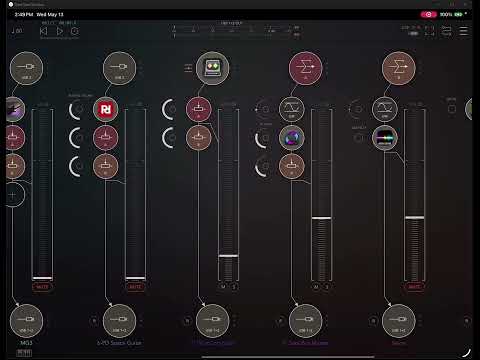
It might not be obvious but you can load linear audio into loopy pro. In the global recording settings (or in a clip’s details), set After Record to Stop. In the clip details, turn on the play once option.
Here is a walkthrough of setting up a simple two input linear recorder.
https://youtube.com/shorts/jn6fU3AonuE?si=RwA3z60cTKZ1QgoJ
Apologies if I’ve got this completely wrong but by sending bus a to bus b aren’t you in effect doubling up the mix to bus b as everything else has also sent to bus b (hope that makes sense)
To get recordings of mix bus a and b you just need to arm the recording at the bottom of the channel and hit record for the whole session. You will finish up with two recordings called (from your video) 8: Sonobus Master blah and Neon blah where blah is the bpm and recording number.
Again apologies is this is just 🐎💩
If I understand the situation correctly, @Kendoori, I think the simplest solution, given your current set-up, would be to:
1) take Neon off Bus B and take the B send off A, so that B is the mix bus for ONLY your own instruments;
2) create a Mix Bus C and insert Neon on THAT channel;
3) route A and B to C. That would allow you to adjust the volumes of A and B independently to control their balance in C. You can now also pan/compress/limit/whatever them separately if you want to.
4) You want to be certain that your signal in Sonobus is muted completely so that none of it is being recorded into Neon from A. Otherwise you’re doubling your part, which will make it louder in the mix.
Thus: A is Sonobus minus you. B is all you. C is both of you.
I would also suggest that when you’re monitoring the session, you only monitor C, so that you’re only hearing the mix of Sonobus and you. At least until you’ve got the recording levels set to your liking.
Of course, since you’re ending up with a single stereo track, you won’t be able to adjust the respective volumes of A and B independently after they’re recorded. But the idea here is that you wouldn’t have to, if all you’re looking for is a reference recording with a nice, balanced mix.
Great minds think alike @Mountain_Hamlet 👍