Loopy Pro: Create music, your way.
What is Loopy Pro? — Loopy Pro is a powerful, flexible, and intuitive live looper, sampler, clip launcher and DAW for iPhone and iPad. At its core, it allows you to record and layer sounds in real-time to create complex musical arrangements. But it doesn’t stop there—Loopy Pro offers advanced tools to customize your workflow, build dynamic performance setups, and create a seamless connection between instruments, effects, and external gear.
Use it for live looping, sequencing, arranging, mixing, and much more. Whether you're a live performer, a producer, or just experimenting with sound, Loopy Pro helps you take control of your creative process.
Download on the App StoreLoopy Pro is your all-in-one musical toolkit. Try it for free today.
Park open app on a separate page Geoshred

Hi Folks,
Thanks to everyone who made tutorials and answered questions. I am finally getting musical with LP.
I am adding GeoShred to my template. I would like to have access to it on a different page than my main page. I picture it taking about 3/4 of the page in size. I then could put a duplicate of the needed loop controls only from the main page next to it. I have not figured out how to keep GeoShred open on the alternate page when it is not open on the main page.
Having great fun with Loopy Pro
Comments
Can you post screenshots demonstrating what you mean?
There’s a trick for this. Go to Clip Settings in the hamburger menu. Inside Follow Actions you’ll see the Select Page item. Add a Toggle Audio Unit Interface (or MIDI AU) action and set it to open Geoshred when you select the page. And on the other pages of your template, you’ll need the same action but set to toggle off. Now when you select that page, Geoshred will appear, and go away when you leave the page.
Thanks for your help.
Page A shows my main template.
@Bellows : I am not sure I understand what you mean about mirroring the controls of page A. Are you wanting to record into the clip on page A from page B or do you want the clip on page B to be a separate clip?
Thanks to both of you for your help. I am having trouble loading more pictures.
I will try your suggestion Tim. It sounds right.
Espiegel, I want to record into the clip on page A. A more normal use would be to just open GeoShred on page A but it covers too many of my controls. I thought it might work out better opening it on an easily accessed separate page with ability to control the loop and then easily return to the page A easily.
I have a template that uses this action setup:
https://patchstorage.com/lo-op-1/
If you want to take a look.
Here is what page C should look like
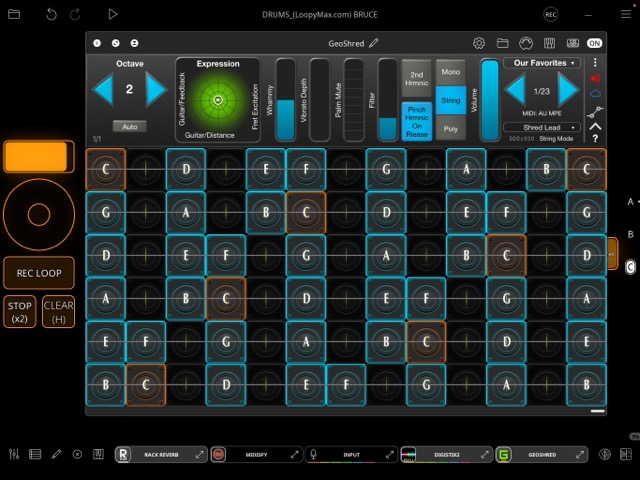
The little bit of a button showing on the right side is a toggle to bring in the app and to remove it before I go back to the main page. It is my work around for the moment
Hi Tim, after a couple of backwards trials this idea worked perfectly. Thanks so much for this tip 👍😎🚀
Espiegel,
I am getting there. Even though I copied the orange controls from page A to page B I had to change their properties to clip 5 on page A to make them work. They are working fine and they update on their appropriate other page.
The only thing left is the clip circle widget itself. I am not sure how to make both clips the same clip. I need to see it on page C .
Well, upon further investigation I discovered that the feature of cloned loops like this is not possible but it has been requested as a feature. I decided to shift some things around on page A so a large GeoShred UI will not hide what I need.
I did read about some status indicators but it appeared to be more complicated at this point.
Thank you to everyone for your help .
You could trigger page a’s loop from page b with a widget. The widget would show the clip’s state. A horizontal slider could be used to show the playhead position.
Woah, I had to think about that one for a minute.
So, set the action on the horizontal slider to
Adjust playhead positionfor the clip and it reflects on the slider? Cool trick.I think I'd be afraid I'd accidentally touch the widget. But dang, that's really clever.
.
I have trigged the loop with a button that gives some indication. I will try the play head position as that would be very helpful.
Thanks
I did try the play head adjustment idea and it did work well.Very useful technique. I could tell by the record widget if it is in overdub or not also. This exercise makes me realize how very much useful information is on the clip widget.
To prevent accidentally touching it, you can put a text widget over it that has a do-nothing action.
Excellent!
Fwiw, I use adjust parameter with no clip selected as my do-nothing action of choice.