Loopy Pro: Create music, your way.
What is Loopy Pro? — Loopy Pro is a powerful, flexible, and intuitive live looper, sampler, clip launcher and DAW for iPhone and iPad. At its core, it allows you to record and layer sounds in real-time to create complex musical arrangements. But it doesn’t stop there—Loopy Pro offers advanced tools to customize your workflow, build dynamic performance setups, and create a seamless connection between instruments, effects, and external gear.
Use it for live looping, sequencing, arranging, mixing, and much more. Whether you're a live performer, a producer, or just experimenting with sound, Loopy Pro helps you take control of your creative process.
Download on the App StoreLoopy Pro is your all-in-one musical toolkit. Try it for free today.
M-vave midi pedal -> PC vs CC messages?

Hi everyone,
Pardon me, if this is a question that is answered somewhere else in this space.
I am using a midi controller for the first time, and I'm learning A LOT. But at the moment, I'm a bit lost in the wood
I'm trying to configure my M-Vave Chocolate Plus pedal to use CC messages, rather than PC. I'm unsure how to do that.
Someone mentioned Midiwrench and I downloaded that. But, in looking at the app, I'm not sure what to do next.
My questions now are
1) When I am doing this configuration, is it something that is happening inside the pedal? Or is it something that I need to do in Loopy Pro? Or somewhere else?
2) Is there a resource I can read to learn the very basics of midi?
3) Do you have a resource, or is there a resource on this board, that talks about switching between PC and CC?
Thank you so much for your time. You're awesome.
Jason
Comments
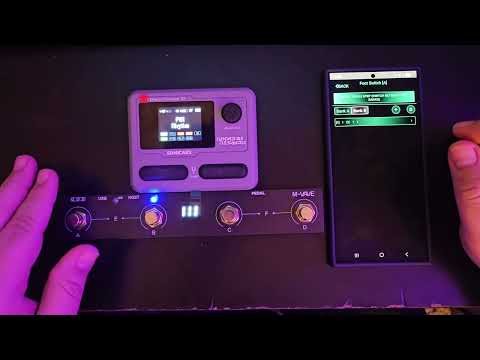
The CubeSuite app is the configuration app. If you are planning to use the pedal with Loopy Pro, I recommend you choose the Manufacturer Control setting. It is a pre-configured CC setup.
And this channel has many ways to use the M-vave:

And for the Pocket Master:
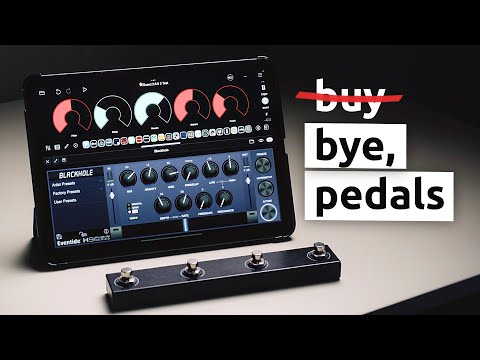
And this is with Loopy:
The change is happening inside the pedal.
Once you have messages coming out from the pedal, you connect them to Loopy elements such as mixer faders, loops, widgets, and other things to do things with them.
Here's one pretty good one: https://theproaudiofiles.com/midi-basics/
Since you specifically mentioned CC's and PC's here, a fundamental difference between them is PC (Program Change) messages are generally used for things like changing synth patches. CC messages are generally used for changing controls. They can be variable changes, such as sweeping a filter cutoff or can also be used like switches, sending a single value at a time. CC messages are more commonly used and supported by apps than PC messages. Not all apps support PC at all.
Of course, you're asking about a foot-switch, so your CC's are acting as switches. They'll send a value of 127 (ON) followed by 0 (OFF). It's possible to plug an expression pedal into the chocolate, which would give you one CC of continuous control.
I'm not clear what you mean by this question. Maybe the brief explanation and further reading above will help sort that out.
Or, if the question is about how to make the changes in the pedal, here's the link to the CubeSuite app that you need to make the changes: https://apps.apple.com/app/cubesuite/id1576180487.
@espiegel123 's suggestion to use the Manufacturer Control setting is definitely recommended.
This is a great resource for understanding how to put it all together in Loopy Pro.
https://wiki.loopypro.com/MIDI_Basics
[edit] Actually, nvm. Those are more geared toward using MIDI Loops than about MIDI in general.
The example projects in Loopy Pro are essential as well.
Hooray! This is all so helpful. Especially the bit about "The change is happening inside the pedal." That's what I thought, something on another page made me wonder.
And, thanks for the link to proaudiofiles. It's so helpful to narrow some choices down. I'll be sure to read through that.
I really appreciate it, all!
OK. Now I have CubeSuite, and I'm trying to get things paired. But, I get an infinite "loading." (screenshot attached)
I have restarted the ipad and the pedal several time, and removed and redownloaded the app, hoping that it was as simple as that, but the problem remains.
Do you have any thoughts as to why this is happening?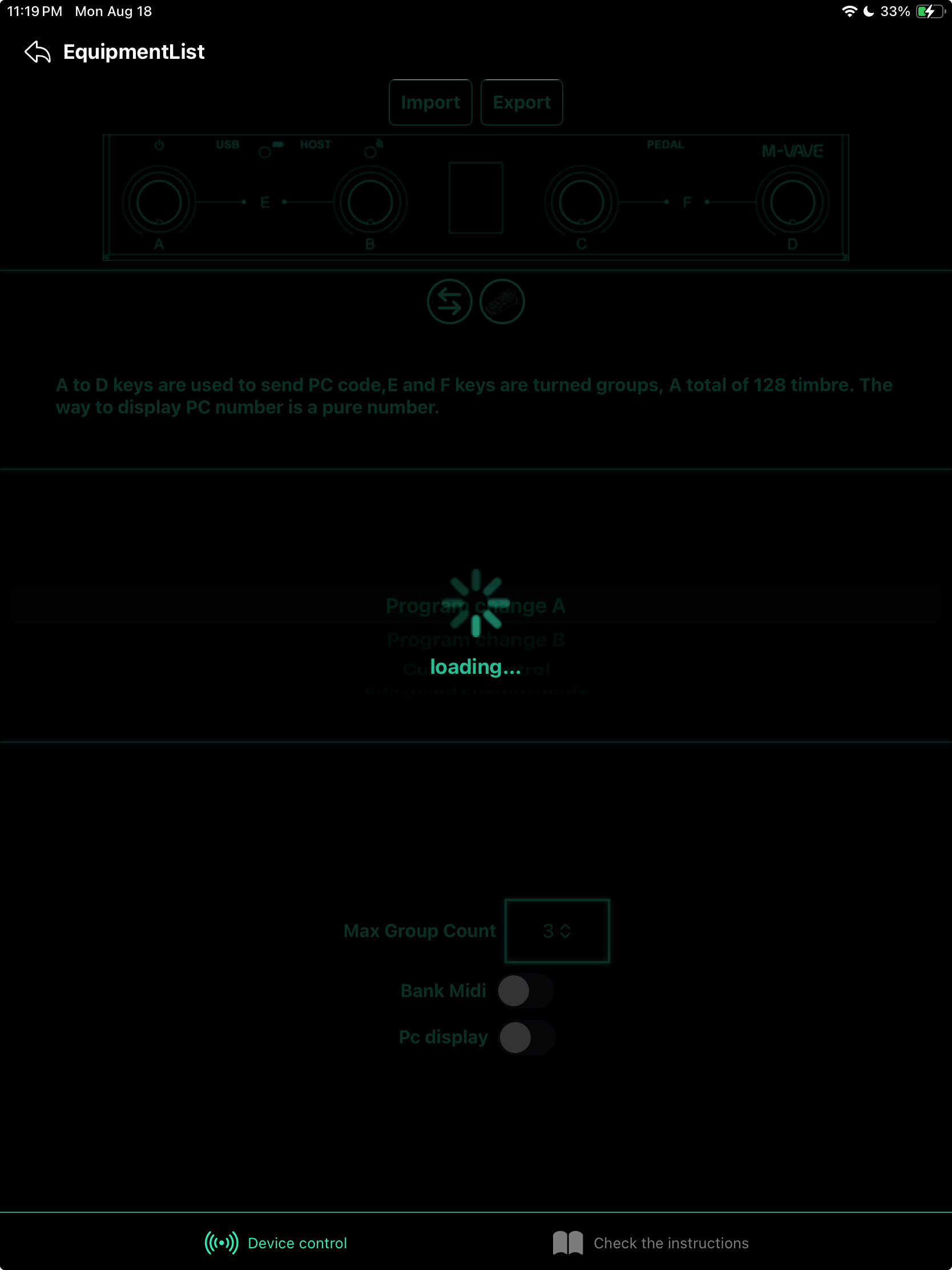
Thanks for your time.
At what point does this happen, is this initial loading process or have you tapped on some option? What OS version are you running?
FootCtrlas connected?FootCtrlin the Equipment List?FootCtrlin the Equipment list that it gets stuck on Loading?If yes to all of those, then try going to iOS Settings > Bluetooth and tap the ℹto the right of the connected entry, then
Forget Connection. Then power the M-Vave off and back on, and reconnect. Then try CubeSuite again.Also, be sure the battery is fully charged and that there's nothing plugged into the USB-C port.
Hi wim,
Yes, that’s exactly what is happening.
I just tried the process that you described and it is stuck in the same place.
I’m using iPadOS 17.7.9
Any other thoughts?
Thank you for your time.
It almost makes me wonder if you got a bad unit. Did you buy it new, or used?
You might want to try updating the firmware. It's possible it's corrupted in some way.
< Browseat the top-left to get to the top level of the files app, scroll down to Downloads, then find the file in Downloads and tap it.I tried these steps with my Chocolate (not plus) and they worked smoothly. I was on firmware version 30 and am now on firmware version 51. Note for anyone else reading this: This reset the Chocolate to factory defaults. I had to manually set up the foot switch to my custom settings after the update.
Wow! Thank you so much for such a thorough explanation.
I bought it new awhile back. As I've been working on this problem, I thought back to remembering some kind of setup when I got it. But, then life got busy and I never got around to doing anything with it.
I'll give it a try. Thanks!
Yes! That did it. I'm fully connected to Cubesuite.
Again, I really appreciate your time. Thank you.
Yay! The hair always stands up on the back of my neck when I suggest a firmware update to anyone. Too many memories of bricked units after failed or interrupted updates.
In this case it seemed you had little to lose since you couldn't do much with it anyway, and since it seemed to run quite smoothly on my own devices.
@wim. Thanks for the excellent instructions. Just one little catch. If Chocolate was previously paired with a different iPad, which happens to be sitting right next to it, I had to forget the device on the old iPad before the updater could see it. Also, I did need to forget it on the current iPad before the updater could see it after the update. That resulted in a brief panicky sequence of "Connect Failed".
I see they've actually published a manual for CubeSuite. When I got mine, it seemed like the only info was on that Mod site,
Thanks for the additions. I did mention the need to forget the device and re-pair it after the update. I skipped over the given that the chocolate needs to be forgotten when changing to another device.