Loopy Pro: Create music, your way.
What is Loopy Pro? — Loopy Pro is a powerful, flexible, and intuitive live looper, sampler, clip launcher and DAW for iPhone and iPad. At its core, it allows you to record and layer sounds in real-time to create complex musical arrangements. But it doesn’t stop there—Loopy Pro offers advanced tools to customize your workflow, build dynamic performance setups, and create a seamless connection between instruments, effects, and external gear.
Use it for live looping, sequencing, arranging, mixing, and much more. Whether you're a live performer, a producer, or just experimenting with sound, Loopy Pro helps you take control of your creative process.
Download on the App StoreLoopy Pro is your all-in-one musical toolkit. Try it for free today.
Preset Switching & MIDI Routing Help

Hi fellow loopers!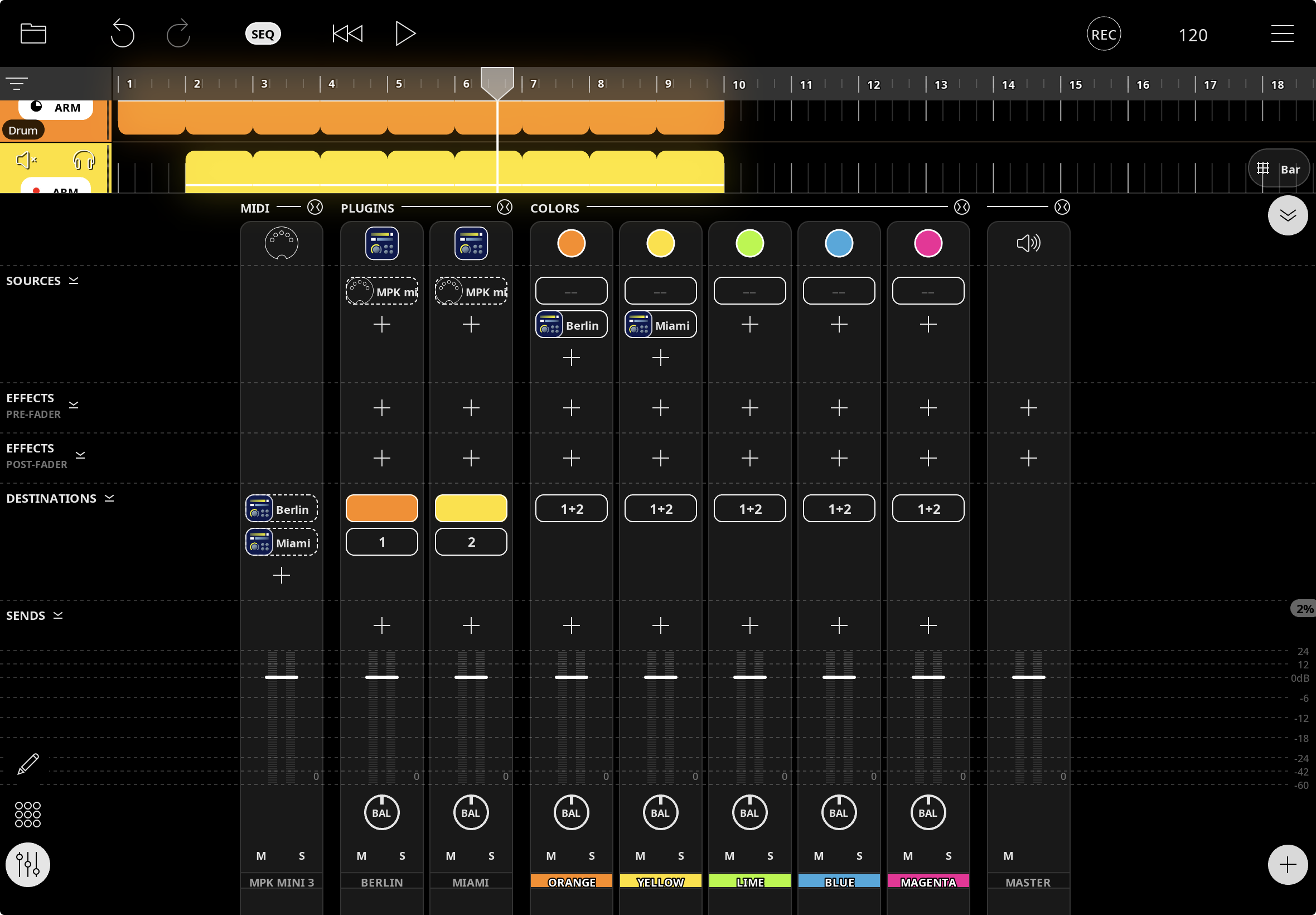
I’m setting up a sequencer workflow with multiple instruments and have two issues:
1. After recording guitar, I want Loopy Pro to automatically switch to a different preset so i can then record guitar on another track. How can I automate this?
2. I have Berlin and Miami plugins both receiving MIDI from my MPK Mini (see screenshot). When I play, both trigger at the same time. How do I make only the currently armed track receive MIDI? ( the routing and so on is confusing me)
My setup: iPad, Focusrite Scarlett, Akai MPK Mini.
Any tips on actions or MIDI routing appreciated. Thanks!
Comments
@Sevaare :
Re #1:
Re #2:
The most common method would be to make use of the enable midi destination action:
https://wiki.loopypro.com/Synth_Routing_2.0
The precise details of automating the switch depends on how you are going about doing things.
@Sevaare : another option for your routing is to mute whichever synth you want to be inactive.
The details of how to set that up depends on the details of how you want to go about switching targets.
@espiegel123 : Thank you for responding so fast and clear! I have to admit it still is a bit confusing to setup for me even though i looked at the video of the synth routing which I will tryout...
Re #1: Yes I meant changing the clip that then records another preset of guitar (without playing the other guitar preset on the other track, basically only recording the new track while hearing the other tracks)
Re #2: Is this midi routing able to be configured so these switches happen automatic so i can play only the needed synth in the sequencer?
The idea is to set up the sequencer so that it records first say the guitar, then another guitar part with another preset on another track , then a synth bass, then on another track another synth with keys and so on without at the same time triggering the other synth. If you have any videos or tutorials or templates or so I would love to know about them to set this up! I hope you can help clear this up and thanks for helping out!
@Sevaare : when you say preset, do you mean “clip”? Preset in loopy pro (and most iOS apps) refers to synth and effect settings presets.
@espiegel123 : Yes, changing the clip is what i meant.
@Sevaare : here is an uber quick video showing setup to arm three clips to be recorded automatically when the sequencer runs
https://youtube.com/shorts/zI4BztWca-k?feature=share
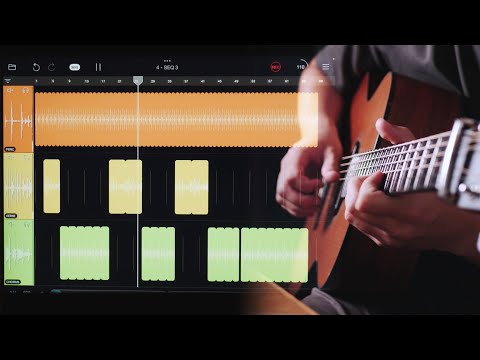
Here is another demonstration
Another approach
I’ll get back to you on the synth switching. There are a few ways you might go about it.
@Sevaare : re switching synths. More details are needed. If you are potentially going to be playing at at the time a clip starts recording, the switch will need to be made before recording the new clip starts recording—otherwise the beginning of the first note might be clipped.
@espiegel123 Thank you for the videos, now I know how to setup the sequencer to record but i still have problems on how to go on about setting up the synths so they dont play at the same time and how to record different presets of guitar.
Re keyboard switching:
I asked for more details about the switching as the precise context makes a difference about the best way to do it.
Re recording guitar clips:
What is it that is unclear about how to record different guitar clips? One of the videos I posted shows that you put empty clips in the timeline at the place where you want to record them and arm them. The Max Yar clip shows a more sophisticated version.
Can you tell me more specifically what isn’t working?
These are some picture that maybe can help ? I am able to record the synths in the sequencer but when i play my midi controller i dont want to be hearing them both play at the same time. I would love to hear only the track i need to record because now when i record i both hear the bass and lead instead of only the lead and vise versa.
The problem if the guitar is that I dont know how to record more then one track, I only seem to be able to use Bias Fx 2 in one track since its Inter-App audio? I would love to have multiple channels of guitar with different presets that then will be recorded in the sequencer but i only seem to be able to get one track... maybe I am overlooking something but i have no idea on how to do this.
Thanks for your help!
@Sevaare : from your description , it sounds like there are several different things that you should tackle on their own. First tackle the setup before dealing with sequencing the recording.
This may seem like a lot, but each piece is pretty simple taken one-step-at-a-time
GUITAR SOUND SWITCHING
It wasn’t clear earlier that one of the things to tackle is getting different sounds on the guitar.
Any Inter-App Audio solution will have only one audio stream. If you want to use an app for your guitar processing, you will have to use one input channel and send midi to Bias to change presets.
If you use an AUv3 instead (which would be my recommendation. You could either use one guitar input channel and change AUv3 presets OR set up multiple input channels with different effects and switch between them OR use one input channel and multiple effects buses that you switch between.
You could also have different colours with different effects chains: https://wiki.loopypro.com/Multiple_Paths_For_An_Input
FOR SYNTH SWITCHING
There are a few approaches:
SETTING UP MUTUALLY EXCLUSIVE MIXER CHANNELS
https://wiki.loopypro.com/Mixer_Actions#Mutually-Exclusive_Inputs
DUMMY CLIPS
Once you have that set up, you can use dummy clips in the timeline to handle the switching or set up midi automation. Dummy clips are the simplest to set up. See : https://wiki.loopypro.com/Dummy_Clip
@espiegel123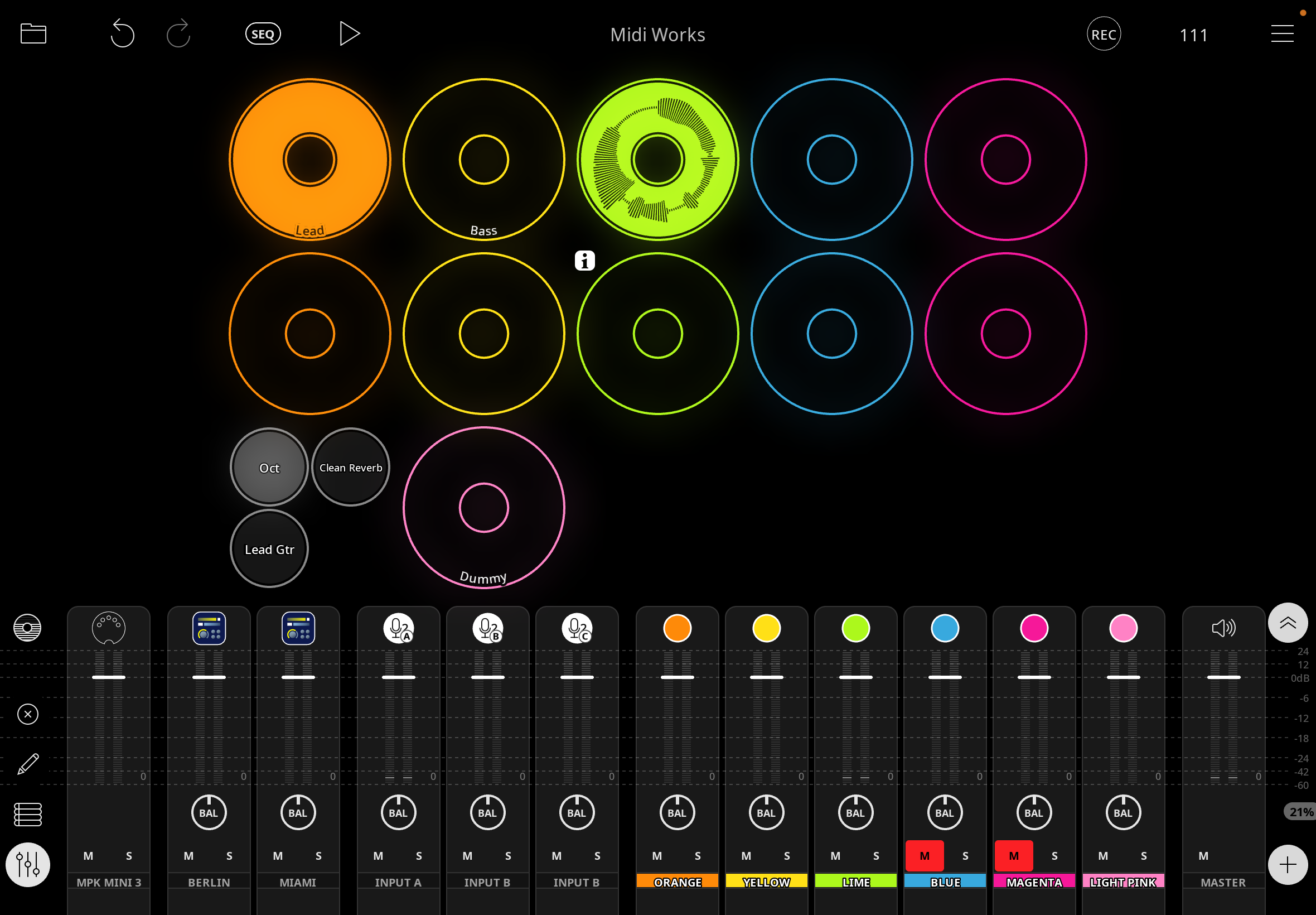
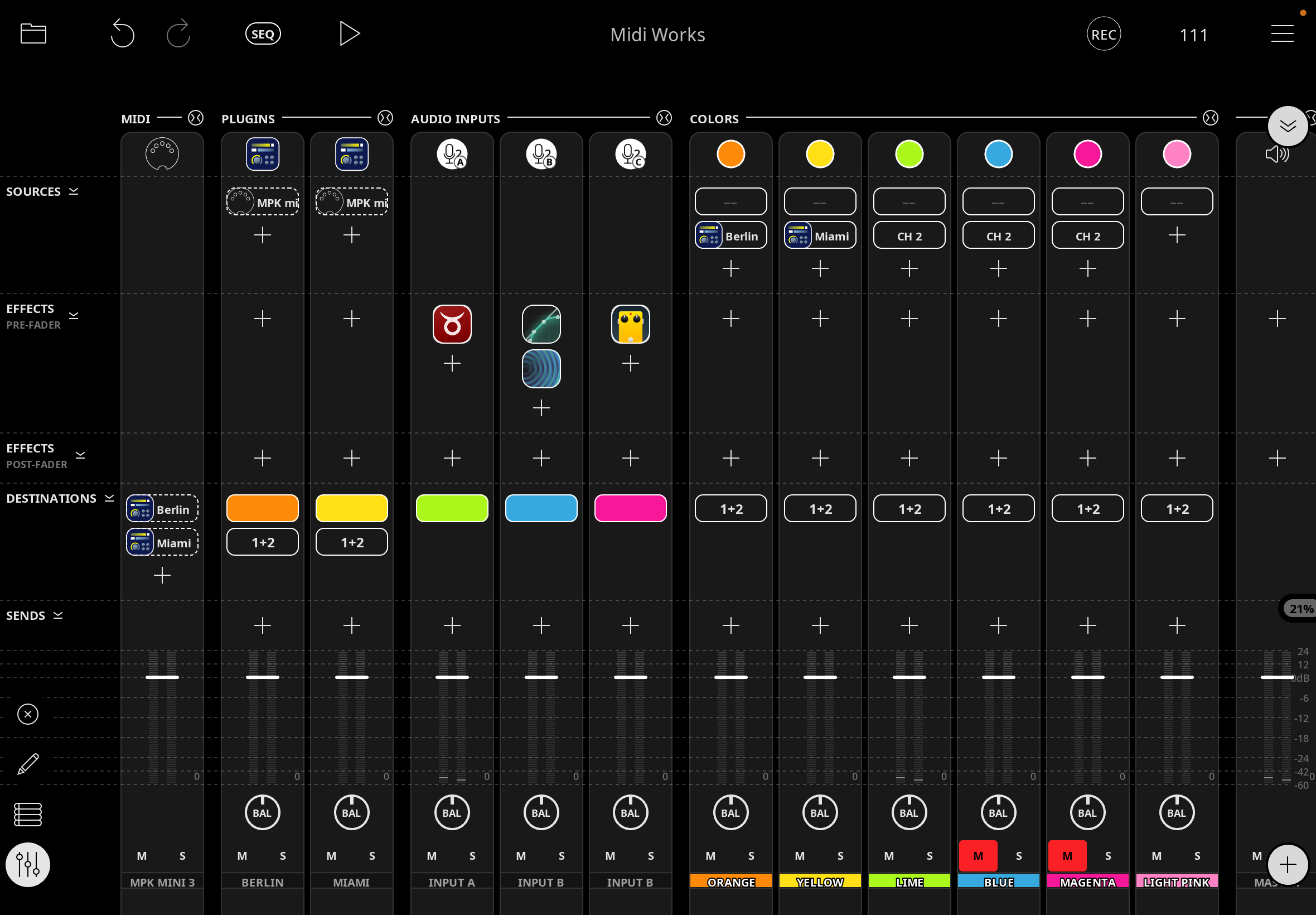
Thanks for helping me out, i have started to only focus on the guitars for now and I have setup the mutually exlcusive mixer channels with the help of your youtube video... the radio dials work but i have no idea how to set up this dummy lol, i know you said its the easiest part but i cant seem to figure out how... would really appreciate it if you could help me activate the radio buttons so i can record these presets in the sequencer. Thanks !
@Sevaare . Did you look at any of the projects on the Sequencer Hacks page mentioned at the end of the dummy clips article? There are some example projects and video about how they work.
The basic steps for setting up a dummy clip;
Once the dummy clip works as you want, add it to the sequence where you want it.
You might want to create a button that performs the desired actions and have the follow action trigger the button. That makes testing and refining easier.
@espiegel123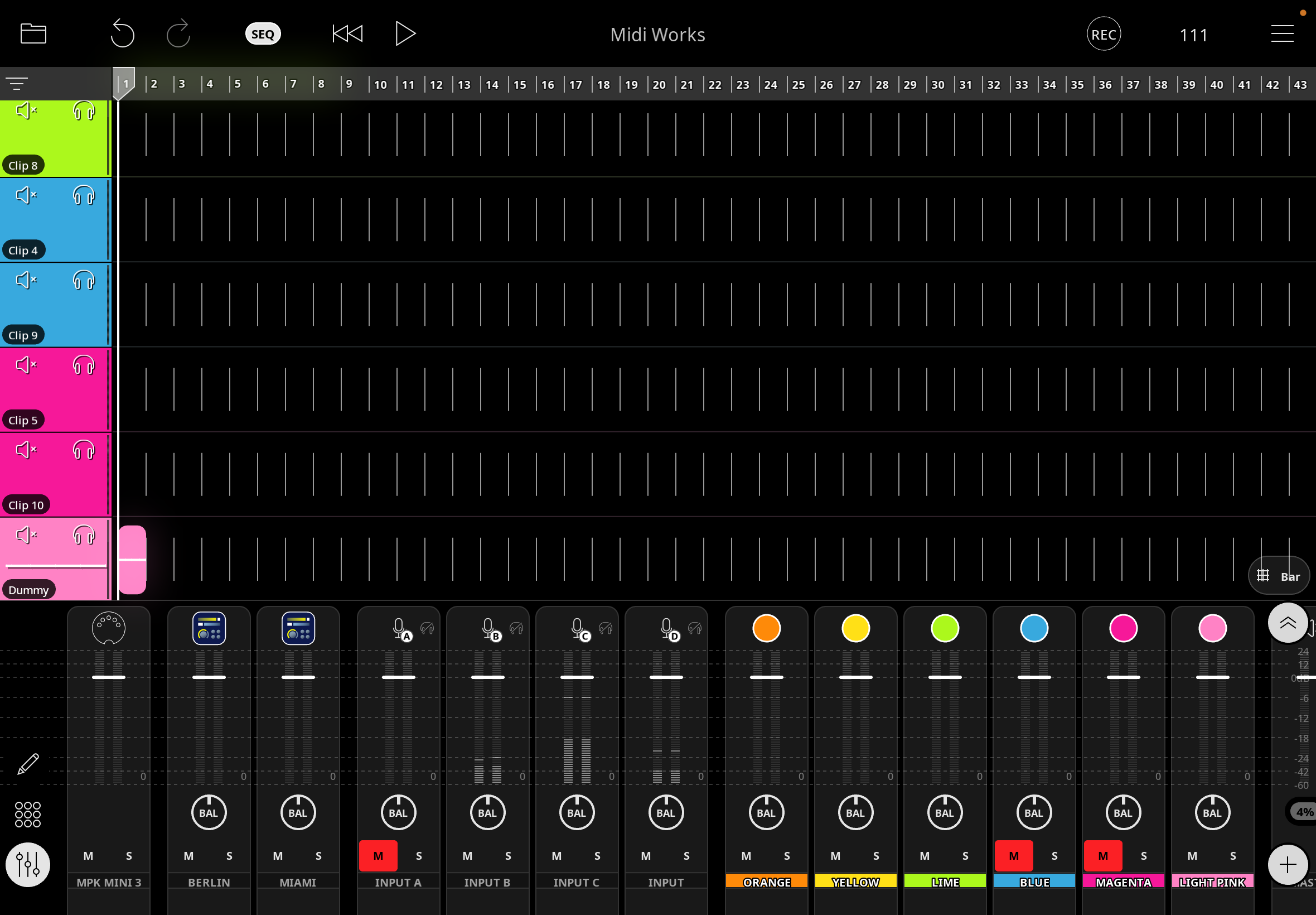
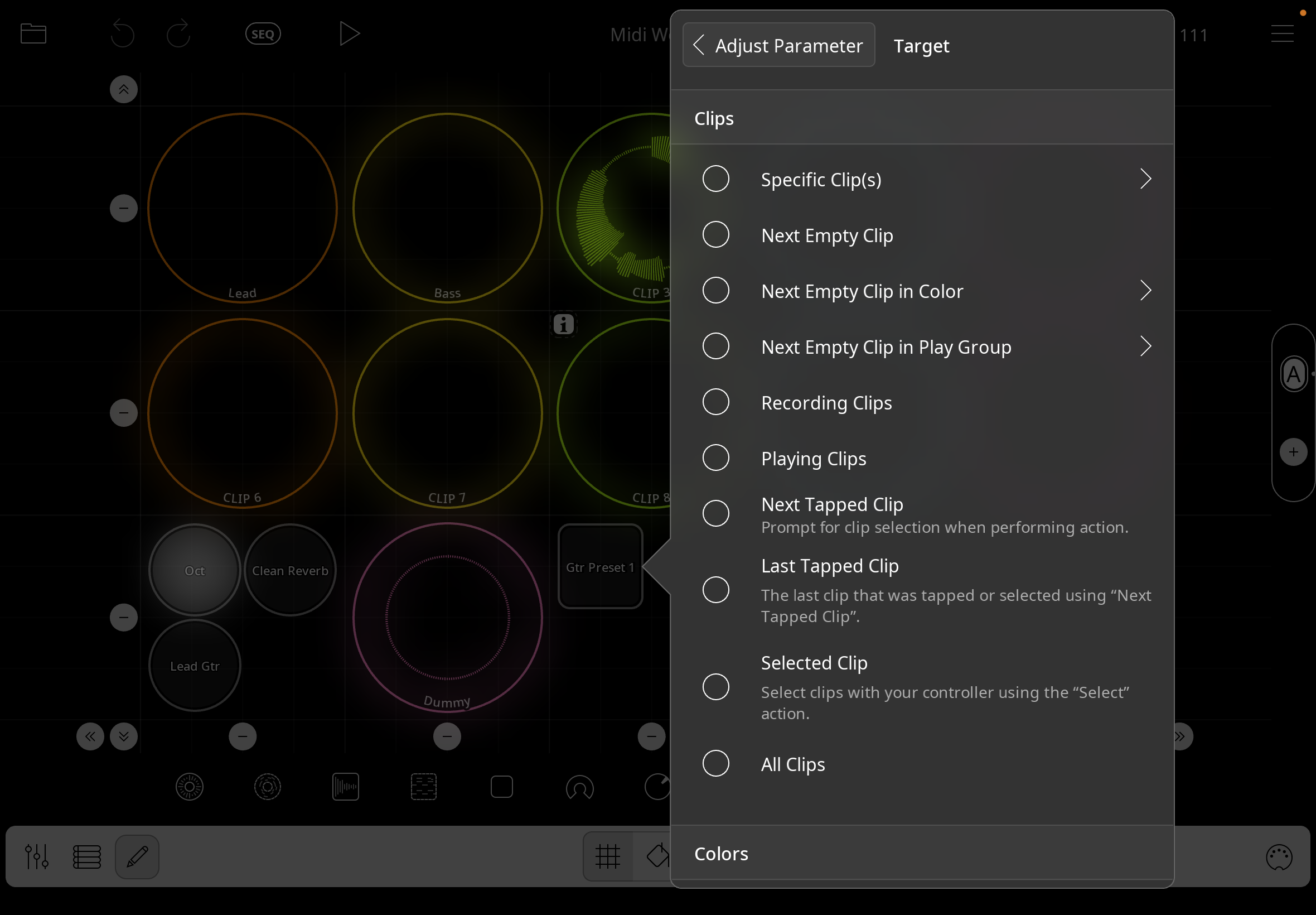
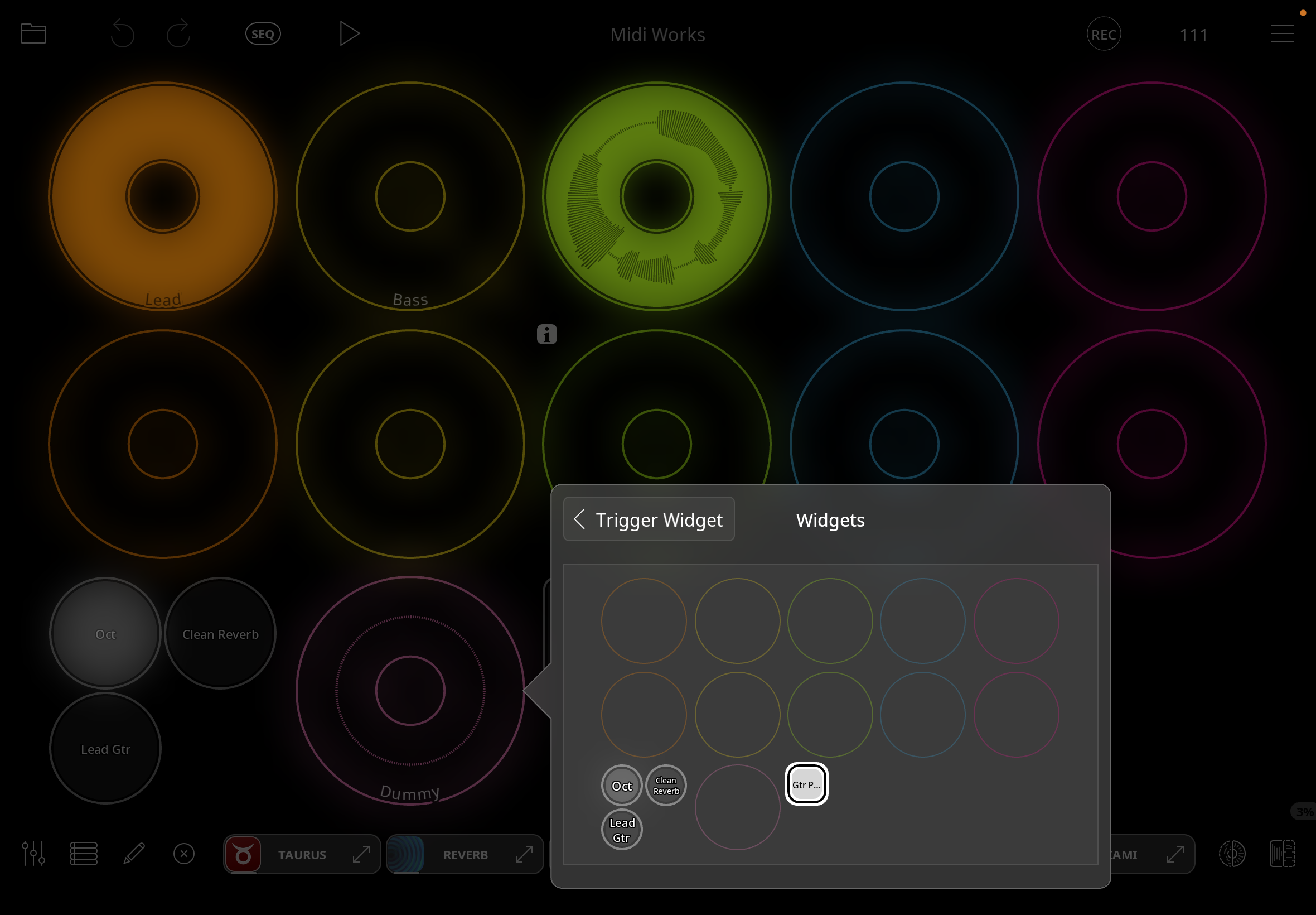
I have watched your videos on navigating the sequencer and played around with the templates and then tried to replicate this but for some reason i cannot find the setting to choose which radio buttons to select and the other button you said that i needed to add that would help i have also tried to set this one up but i have no idea on how to do this and couldnt find the radio buttons their either ? What am i doing wrong and how do i fix this ? Thanks for helping!
@Sevaare : have you set up a button that when you press it, selects the radio button you want to select?
If not:
Test it.
If it works:
Test it by selecting a different radio button and tapping the clip to play enable it. When the clip becomes play-enabled the button’s press action should be activated.
Note that play follow actions are triggered when the clip ‘s play-enabled state changes to play-enabled. The transport does not need to be running.
——
Some suggestions for getting to to speed on intermediate and advanced level features.
——
Hey everyone! I’ve been diving deep into MIDI routing lately for my performances and can totally relate to the struggles discussed here. Switching presets seamlessly is a basketball stars game changer! I remember once at a gig, I had everything set up perfectly only to hit the wrong switch mid-song—what a disaster! Since then, I've focused on learning tools like Loopback and creating intuitive layouts in Loopy Pro. It's made my workflow so much smoother! If you're looking for some fun while mastering MIDI, check out how they gamify it over; it’s all about strategy there too, just like music! Keep sharing your tips, everyone!