Loopy Pro: Create music, your way.
What is Loopy Pro? — Loopy Pro is a powerful, flexible, and intuitive live looper, sampler, clip launcher and DAW for iPhone and iPad. At its core, it allows you to record and layer sounds in real-time to create complex musical arrangements. But it doesn’t stop there—Loopy Pro offers advanced tools to customize your workflow, build dynamic performance setups, and create a seamless connection between instruments, effects, and external gear.
Use it for live looping, sequencing, arranging, mixing, and much more. Whether you're a live performer, a producer, or just experimenting with sound, Loopy Pro helps you take control of your creative process.
Download on the App StoreLoopy Pro is your all-in-one musical toolkit. Try it for free today.
How to install presets on DrumComputer for iPad?

This seems like a really dumb question, but I recently got Sugar bytes’ DrumComputer and also bought a preset pack for it. I literally spent hours trying to import those presets yesterday and made absolutely no progress. Installing the app and enabling the iCloud sync in the app doesn’t leave me with any sort of dedicated folder in the Files app, so I can’t just move the preset folders into that. And if I click the “Import” button in the preset browser, it brings up the Files app, but every single preset file is greyed-out and can’t be selected, so I don’t know what the purpose of the import function is. I’m about to lose my mind over this. It shouldn’t be this hard to install a set of presets, but it feels like the app is doing everything in its power to make that impossible. Any help would be much appreciated.
Comments
Yea importing presets on any app can be tricky because theres no universal method, each app has its own unique way that works best. I don’t think I’ve ever imported any presets into DrumComputer, but here’s a few thoughts.
Did the place you purchased it from give any directions on installing?
Did you check to see if a folder was created in the files app, “on my device”?
Edit - after a quick check i dont have a DC folder in iCloud or on my ipad, maybe you have to create one…? Not sure.
You might have to import the zip folder not the individual presets, once imported they should show up in the preset menu.
Here is the main sugarbytes DC page with the iOS manual at the bottom, maybe the answer is in there.
https://sugar-bytes.de/drumcomputer-ipad
I don't have any DS patches to import but try opening the preset window, open the user folder, tap import at the top, and import the zipped folder of presets, if not try importing the unzipped folder of presets, if not try importing each individual preset at a time.
It looks like you should be able to import the entire unzipped folder at once, but i dont have anything to test that theory with. Good luck.
Maybe someone who has done this could help.
Unfortunately, I’ve tried all of those things and none of them work. The manual isn’t any help either, because it says to put the presets in the iCloud Drive folder, but there is no folder for the app anywhere in the files app, neither on my iCloud Drive or “On My iPad”. It won’t let me import a .zip file anywhere either. I’m at a complete loss here.
Edit: I can’t import the presets one at a time either. When I select the “import” option from the user page, anything that could be a preset file is greyed out and can’t be selected for importing.
What are you trying to do this in the standalone, the AUV3, or both?
I’ve only tried in the standalone, but maybe it works when using as an AU….?
That’s extremely odd. I was looking for a way to export presets and if you go into user presets, and slowly swipe from the right you get a delete button then a share button. So you can export individual presets to share, but didn’t see a way to export folders, so im wondering if you can only import individual files.
somebody has to know in this forum. Now you got me very curious about the whole process.
Let me try something.
In standalone i could not even import one of my user patches that i just shared to myself. Now I’m confused.
Who knows Drum Computer well? Could someone who is very familiar with the app chime in to help us out with importing presets? Thanks in advance.
Sometimes these things work better from outside the app. Have you tried sharing a zip of the presets with the app? You may need to fiddle with the share sheet in case there are many apps that accept zip.
And remember, you will never be able to share or import a complete folder, because an iOS app cannot browse the contents of another app's folders. You, as the owner, can select a file from the Document Picker ("Files" app), and grant permission to read or write one file. May apps use zip files to circumvent this. This limitation is due to the sandboxing of iOS apps.
The app doesn’t show up anywhere in the share sheet, so I don’t have a way to share a .zip folder with it, unfortunately.
And I’ve tried importing presets in both standalone mode and in as an AUv3, but that didn’t make a difference.
I was getting the same thing.
I just tried to share it from the file app, and was unable to get DC to show up in the share to app options.
You know Im still on ios 26.4, and theres an update for 26.5 available, maybe its that, but not sure…
Im getting frustrated now, lol. I exported my own presets, and couldn’t get them back in.
Someone has to be able to help us with this…. Weird.
I’m on 26.5, so I don’t think being on 26.4 makes a difference. I’m at a complete loss. Why does the app even let you share presets if there’s no way for the other person to open them? This is such a mess.
I suggest contacting them at https://sugar-bytes.de/support. I've heard they're pretty responsive.
Right on. Im confused myself, if you reach out please let us know what you find, i want to know now too. Maybe there’s some very specific or weird workaround method to get it working. I would like to know what you discover, cheers mate!
Cheers @wim
Drum computer is also a computer app, I hope thats not it.
Can you load individual samples in each of the three “voices”? I remember I tried to do that.
I always got reply when writing those peeps.
found instructions on KVR Forums , SugarBytes , recent post ,
which refers to ICloudDrive Folder … except I can’t find mine even though it’s ON in Apps / setting .
turnado folder also missing , though Looperator & Factory are there .
there were a bunch of upgrades recently , wondering if this got broken ?
instructions from KVR thread are :
once iCloud synchronization for DrumComputer iOS is enabled in the Settings Tab under Advanced Preferences choose iCloud, presets you save in the DrumComputer iOS version are automatically synced to your iCloud Drive.
To share a preset from your DrumComputer iOS version to your computer, you’ll need to drag and drop or copy/paste the preset from:
iCloudDrive/DrumComputer/Presets/User
into
~/Documents/Sugar Bytes/DrumComputer/Presets/User
To share a preset from your DrumComputer Desktop version to your iPad, you’ll need to drag and drop or copy/paste the preset from:
~/Documents/Sugar Bytes/DrumComputer/Presets/User
into
iCloudDrive/DrumComputer/Presets/User
The content for both devices will follow the same folder structure.
Which means the global presets are in iCloud Drive/DrumComputer/Presets/User
whereas your own samples should be in iCloud Drive/DrumComputer/Samples/User
So just make sure to share it by saving it into the respective folder.
1.png
Please note that creating and then reading out a subfolder is technically not possible.
Best,
Nadine
Hi, I just tested a bunch of SugarBytes apps on my iPad mini5 & some won’t even start in standalone-Cyclop & Factory. Some have iCloud folder for them, others dont - so looks like something got broken recently (I have iCloud on for all). I know they recently updated Turnado, & that broke the paid version for me & needed another update (fyi, Turnado iCloud folder doesn’t exist for me either).
TLDR: A lot of SB apps have broken non-existent iCloud folders & in my case won’t even start in standalone. I’ll email them about this later, definitely looks like recent update/s broke things..
The problem with these directions is that they depend on the existence of a DrumComputer folder in your iCloud Drive, but that folder doesn’t exist, even after enabling iCloud functionality within the app.
I can't get an iCloud folder to show up either. Even a delete, reinstall, and enabling iCloud sync didn't help. 🙄
I just want to remind you that there are two kinds of "iCloud". First is the original iCloud, where apps can sync their data, still within their protective sandbox. You can enable that in iCloud Settings "Saved to iCloud", and sometimes in an app itself, if allows selecting the storage destination. You cannot see or access those files from iOS, you just know they're there. Second is the more recent iCloud Drive, which works like a typical cloud server. You can access it in the Files app, and apps can access it if you give them permission. I suspect that Sugar Bytes are describing the first, private, type of iCloud syncing, so it won't be accessible from iOS. You can tell the data is there by tapping on the Storage graphic at the top of iCloud Settings.
Now, Sugar Bytes seem to be describing computer access to the iCloud data. It may be that a computer can access the data that is private on iOS, I don't know about that.
I can access my iCloud Drive contents from within DrumComputer, though. And I can import samples and other standard audio files where appropriate from within the app, but if I try to import any proprietary file types (like presets or kits), all of those files are greyed out and cannot be selected. I don’t know if they changed something so that the iPad version no longer recognizes presets for the desktop version, sort of like how Baby Audio’s Tekno for iOS won’t accept the preset packs from the desktop version. I just don’t understand why they have an option to import user presets yet the app doesn’t recognize those files as valid. So I can make my own kit within the app, then save and export that kit to some folder I just made on my iCloud Drive, but if I go back to DrumComputer and try to import the file, it doesn’t recognize it as a valid file type that can be imported. So even setting aside the weird iCloud stuff, there’s the unexplained fact that the app won’t recognize certain file types that it supposedly should recognize.
Have you tried accessing iCloud from your computer, as described in those instructions?
I have tried accessing it by going to iCloud.com, if that’s what you mean. There is no DrumComputer folder anywhere that I can find there, though. I kind of have no idea what those directions are talking about though, so I’m not entirely sure what I’m supposed to be checking for.
I was doing some testing this morning, and of course I didn't fix anything, but I did discover that Aparillo no longer creates its own folder for User Presets in iCloud Drive either. I distinctly remember having an auto-generated Aparillo folder in iCloud after enabling the "iCloud Sync" option when I first installed it years ago; but just as an experiment, and since I know for a fact that Aparillo used to sync with iCloud Drive, I deleted the app as well as its corresponding folder in my iCloud Drive, did a soft-reset of the iPad, then re-installed Aparillo. I opened the app, immediately turned on iCloud sync, then checked the files app to once again discover that it's no longer automatically creating any sort of folder for user presets. I'm afraid to try with any of my other Sugar Bytes apps, because there's a likelihood that the same problem will happen. I don't know when or what exactly went wrong, but somewhere between app updates (or lack thereof), the Sugar Bytes apps are not reliably interacting with the iCloud Drive like they used to, or in some user's case, some of the apps have just stopped functioning entirely in standalone mode. I have looked everywhere to try and find out if or where the iCloud Drive folders are supposedly being installed to, but between my iPad, iPhone, MacBook and iCloud.com, there's no sign of these folders anywhere. I'm not sure if recent iOS/iPadOS updates have messed things up with regards to iCloud syncing, or if there's something wrong with the apps. I'm contacting Sugar Bytes again today, with the follow-up information I've learned, as well as a link to this thread so they can see I'm not the only one who is suddenly struggling with their apps after all these years without any technical issues.
I don’t know if anyone still cares, but Sugar Bytes replied to my email last night, in which I basically just told them a number of their apps have stopped automatically creating folders in the iCloud Drive for user presets. I already know DrumComputer doesn’t; then just as an experiment, I deleted Aparillo and its corresponding iCloud Drive folder last night, then reset the iPad and reinstalled Aparillo, but this time, there was no iCloud Drive folder, so there’s definitely some sudden and inexplicable issues with quite a few, if not all of the Sugar Bytes apps seemingly all of the sudden. Aaaaaaanyway….back to the email response. Here is what they replied with:
“thanks for your report! We must confirm that you're right and we will of course look into this and let you know as soon as we hopefully find a quick fix for that!
Sorry for the trouble and thanks for a lot for your patience.”
So the fact that they’re aware of the problem(s) is a good start, anyway. Now I guess all we can do is wait for the fixes to start rolling out.
That’s good to know, thanks for getting in touch with them and sharing their response @betamax999.
. > @betamax999 said:
Thanks for the update & ftr I care, I love SugarBytes apps! I also got the exact email reply u did. As of writing DrumComputer just got an update that I just tested & can confirm that the iCloud folder is created.
However, I couldn’t import any presets using the “import” button in the user folder inside DC, as they’re still greyed out - but testing some renamed presets & putting them in the user presets iCloud folder works perfectly! 👍
FYI - There's an update to the app today and it says "iCloud Sync bug fixed"
thanks to you guys for finding the bug and getting this fixed
I got the update too, and now there are iCloud folders where there should be.
I’ve run into a new, (very) minor bug with a different Sugar Bytes app though - Effectrix. I’m hoping someone in here can maybe do me a favor to confirm whether or not the “bug” I’m encountering is just isolated to me or not. For anyone who has Effectrix for iPad, would you be willing to either install it (if it isn’t already installed), or else delete it from your device then reinstall it and tell me if the app icon on your home screen looks different than it normally should? Because I just reinstalled it on my iPad, and the icon doesn’t have any color to it anymore. The icon is normally a big letter “E” on a black background, with a few lines of color shadowing behind the “E”, but the icon I’m getting now is missing all the color. If you look closely, you can see the lines where the colors should be, but they’re a very dark gray, so currently the Effectrix icon just looks like an ugly off-center “E” on an essentially solid black background. Is anyone else seeing the same thing?
Hi, yup app icon for Effectrix is the same for me on iPad mini5 latest iPadOS.
Other SugarBytes bugs I’ve noticed are -
. Factory - if u change the rate of a non-midi synced lfo, it says “textedit” after the Hz value. Altering other parameters also cause this, but I can’t remember them all..
. Aparillo - in standalone mode the keyboard is offset on my iPad mini7 (but not on my mini5, these devices have different resolutions). Perfect as a plug-in in AUM tho.
@betamax999 Hi, here is a video I made for a pack.
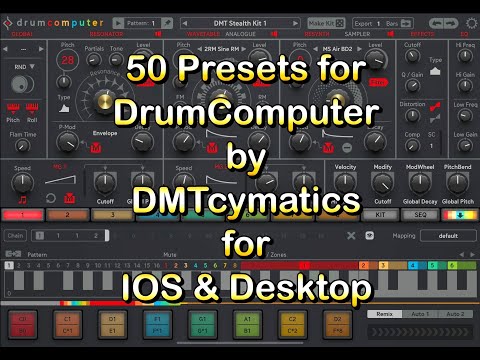
Within the first few minutes I show how to install presets into Drum Computer.
The only drawback is that you have install each preset one at a time, there is no other way to do it, I don’t think.
Anyway hope it helps.