Loopy Pro: Create music, your way.
What is Loopy Pro? — Loopy Pro is a powerful, flexible, and intuitive live looper, sampler, clip launcher and DAW for iPhone and iPad. At its core, it allows you to record and layer sounds in real-time to create complex musical arrangements. But it doesn’t stop there—Loopy Pro offers advanced tools to customize your workflow, build dynamic performance setups, and create a seamless connection between instruments, effects, and external gear.
Use it for live looping, sequencing, arranging, mixing, and much more. Whether you're a live performer, a producer, or just experimenting with sound, Loopy Pro helps you take control of your creative process.
Download on the App StoreLoopy Pro is your all-in-one musical toolkit. Try it for free today.
Comments
Especially given the premium price
Totally agree.
Anyone know what the two power buttons on bottom right do?
Well, I for one won't be buying it just to check it but I'm quite sure it would take me a few minutes max to figure it out
Yeah I found the answer in the in-app help, it's very tedious to have to use that though, instead of having everything laid out systematically and thoroughly, in a clear manual. Powerful app, powerful price tag, deserves a powerful manual...
+1 but it's always a matter of priority, not all developers are good 'manual writers'.
Plus Samu, tbh, it would strain your eyes spending much time reading that in-app, due to the poor contrast between the grey text and the black background, unless you crank your display brightness, but even then...
Firstly, when people are spending this much money on an app, they deserve a manual, whether or not that is the dev's strength. Secondly, at least it would help to even have all the in-app contextual help just dumped onto a web page where it could serve as a proper reference which can be skimmed and scanned, rather than being squashed into tiny in-app pop-ups requiring scrolling.
I’m enjoying sequencing Klevgrand apps OneShot, Borsta, and Skaka. This app really is a great sequencer.
+1. This app is a lot of fun, but I’d love to see a comprehensive manual
Yes I love to put manuals into CustomGPTs because sometimes you will get really nice tips and tricks this way.
But obviously you need proper manuals to do this
Totally agree, @Gavinski. Something as deep as Rubato really deserves a web page manual you can bookmark or download as a pdf; you can have it open in the background or slide it over and consult it as needed. Yeah, it’s still an interruption, but it’s far better than having to menu-dive for a pop-up.
That, and you can read it on its own, something I enjoy doing with the AUM, Loopy Pro, etc manuals. AUM is battery-intensive, so it’s nice to bone up on things while commuting or whatever without having the app open.
With an app as deep as Rubato, it isn’t just a matter of figuring out what something is or how to do something, but simply knowing what is even possible.
Anyway, it was my Black Friday Xmas present to myself (last year’s was FM Classic, btw) and I don’t regret buying it for $29. I’m going to figure this durn thing out.
@Gavinski those power buttons on the bottom right I’m not sure what they do. That’s been a mystery for me.
What exactly are you referring to with the five play heads per? Down at the bottom left sets the speed of the play heads, then you have an acceleration and deceleration curves and the rate they play.
That’s been my number one complaint with Rubato.
The power buttons activate the modules next to them. The Pitchblend and Arpeggiator modules, respectively. Clicking on the module icons brings up their parameters. Shift-clicking them brings up their reference pages. Power buttons turn them on.
Yes, as I mentioned later in my earlier posts I managed to get that info from the in-app help (pity the info isn't actually given when u click on those icons lol). @FizzyLizzy27 I ass asking earlier why there are 5 Offset controls. They're in the section called Offsets below the note grid. I just don't understand why 5 are needed rather than just one.
This is the part I'm asking about when I ask why 5 Offsets are needed.
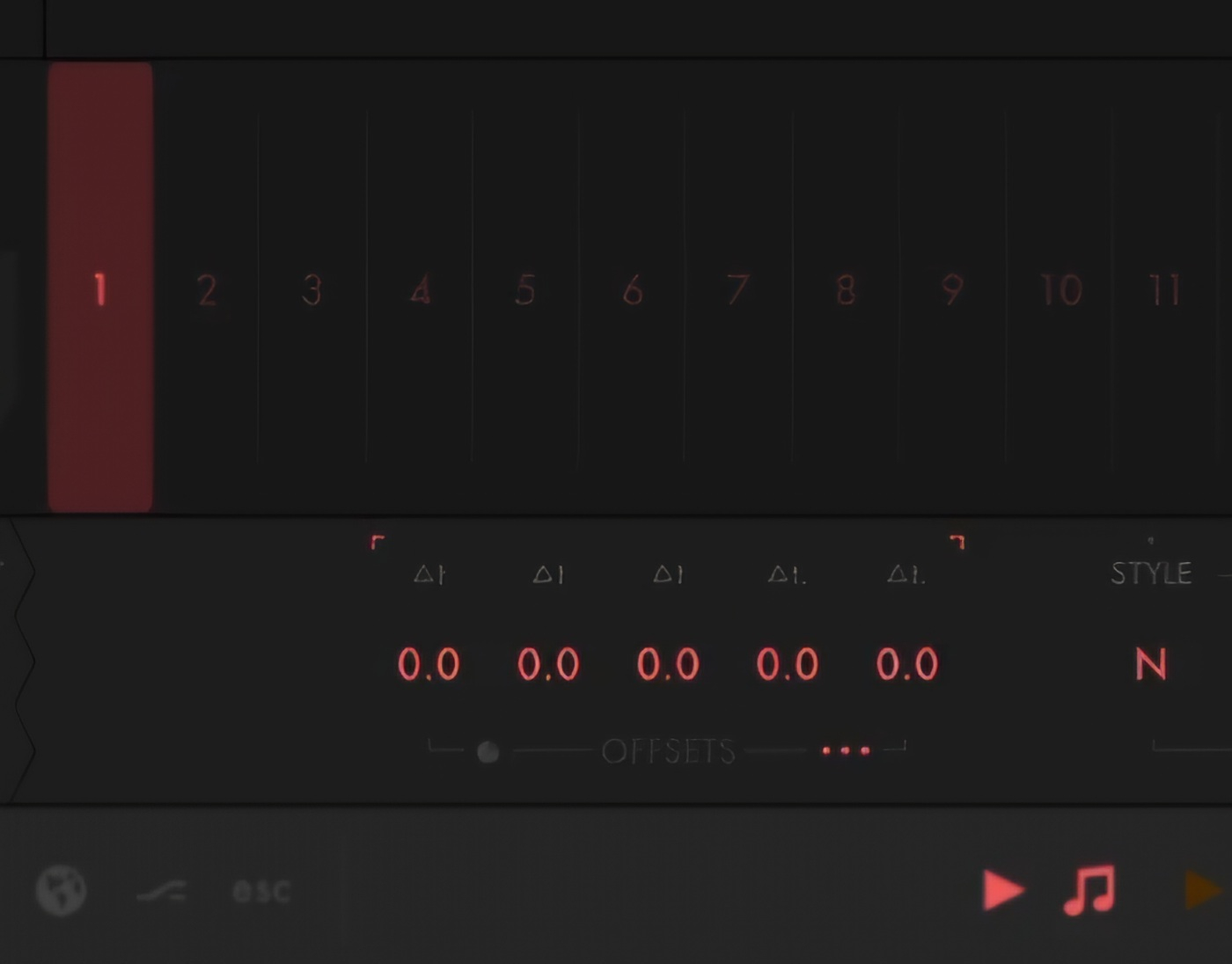
I think each delta corresponds to that part of the playhead speed/acceleration. So deltas for playback speed, acceleration curve, acceleration curve radius, deceleration curve, and deceleration curve radius.
Ah, that would make sense, I'll check that when I get home, thnx
I checked this btw and it's not correct actually, each offset works in the same way and it's not the case that offset 1 is connected to Rate, Offset 2 to Curve 1 etc. You can check this for yourself: set up 2 playheads moving with identical parameters. Then adjust the first offset control for one of them by a fixed amount (eg 0.1). You'll see that this pushes that playhead ahead of the other one. If you put this back to zero and use one of the other 5 offsets to do this instead, you'll see that the results will be identical.
Anyway! In the meantime, I asked the developer and got this reply:
"I added 5 offsets because I found them to be super powerful and versatile, and didn't want to run out. I've found 3 main uses for them:
Using them statically to set where in time you want to start playing, which may require multiple offsets at various factors (the per-offset subparameter) to get exactly what you want.
Automate them to draw time curves. For example, if the automation line starts and ends at 0.0, anything in between is effectively a curve.
Automate them to draw paths. For example, if you set the playhead's time generator to not advance, then the playhead can follow the offset path you draw exactly without advancing automatically."
Explored the Time Blend module on this today - absolutely crazy innovative. Although some aspects of the UI of this app drive me bonkers, I really have to salute the creativity and the vision. There’s really nothing like it.
I now have two spoken videos on FMR up on my Patreon. One on the playhead controls, about 40 mins long, the other on the Time Blend module is about 20 mins long. Joining the Patreon is a great way to support my work if you’re a fan of my YouTube channel. There are now over 100 exclusive videos there, all very easily acccessible via the Collections tab (no need to scroll endlessly through the main feed!).
Making all this financially viable remains a huge struggle for me, so thank you so much to any of you supporting me in any ways you can🙏:
(Jan 13th edit: I now actually have 7 spoken walkthrough videos on Fugue Machine Rubato on the Patreon, over 2 hours of vids in total:)
https://www.patreon.com/collection/1917531
The manual describes how to perform 'double shifts' and 'triple shifts'. But nowhere in the manual are they ever mentioned again. Only single shift operations are detailed. Do double and triple shifts actually serve any function? If so, what?
Does anyone know what the up & down arrows at the top left of the parameter keyboard do?
It blew my mind when I found out what those were for.
You ready for the answer?
It’s “touch ON, or touch OFF” (ie changes take place when you place your finger ON the screen, or changes take place when you lift your finger OFF the screen)
Crazy right? It’s part of the “live performance” aspect of this amazingly deep sequencer. I remember the developer talking about this exact thing; how he designed FMR to be “played live”, so yeah, the Touch ON, and Touch OFF (Up & Down arrows) are more of a live performance feature.
The setting here kinda goes hand in hand with the one, two, and three finger gestures (which are a whole other rabbit hole), which, in my opinion, are also part of the live performance feature/concept, and not necessarily something you’d use or need if you’re just trying to program a sequencer as you would with your typical midi sequencers.
But this is FAR from your typical midi sequencer isn’t it.
Now I don’t recall a setting, but the original FM has a way of working with “touch OFF” events also. Seems FMR inherited some of this character, and he even doubled down on it.
An example of the live jamming concept would be something like; imagine you have a sequence running, with your finger(s) on the screen, you select a different curve, now depending on those arrows, does the curve take effect as soon as you select it (by touching) or will it wait until you lift your finger OFF of the screen.
unbelievable. Thank you for the explanation!
Out of the multicore DAWs, which would be the smoothest to set up a Fugue session? I don’t have N-Track or FL Studio, but do have the others. I feel like I was banging my head against the wall in Cubasis, but I might need to poke around in there again.
I swear I saw somewhere to change the time signature of the piano roll somewhere in the app the other day and now I can't find it. Am I going crazy?
FLSM is incapable of loading any AUv3 plugins, so it may not be a valuable tool for you. (I love FLSM, but that's besides the point.)
N-Track is riddled with auite a few show-stopping bugs. One of the rare apps I ever got a refund for, so please do avoid it if you can.
Cubasis 3 is my fave multicore DAW, but I know it's not everyone's cup of tea. If you're more comfortable with Logic, I'd go with that.
All that said, I'd use Rubato in AUM for recording live Ambient, but I just can't seem to wrap my head around it.
I love Rubato in AUM. It’s my favorite sequencer by a mile. Every time I use it I learn something new. Though every other time I use it I forget something new lol
Time signature, hmm, not sure, but maybe you're thinking of the Note Grid section (tap the 3 dots on top right, then tap the new 3 dots that appears, then scroll down to 'Note Grid'). This lets you set sequence length, steps per beat, and beats per bar. It's really hard to remember where that setting is, it seems to have been jammed into the middle of a list it doesn't really belong in...
Lol. Exactly. I just usually stick to the OG Fugue Machine, Harmony Bloom, and Ioniarics for the stochastic MIDI stuff. 😅